
How to regain Edge Legacy after system update
Follow the process step by step :
Step 1 : Uninstall New Chromium Edge (if already installed)
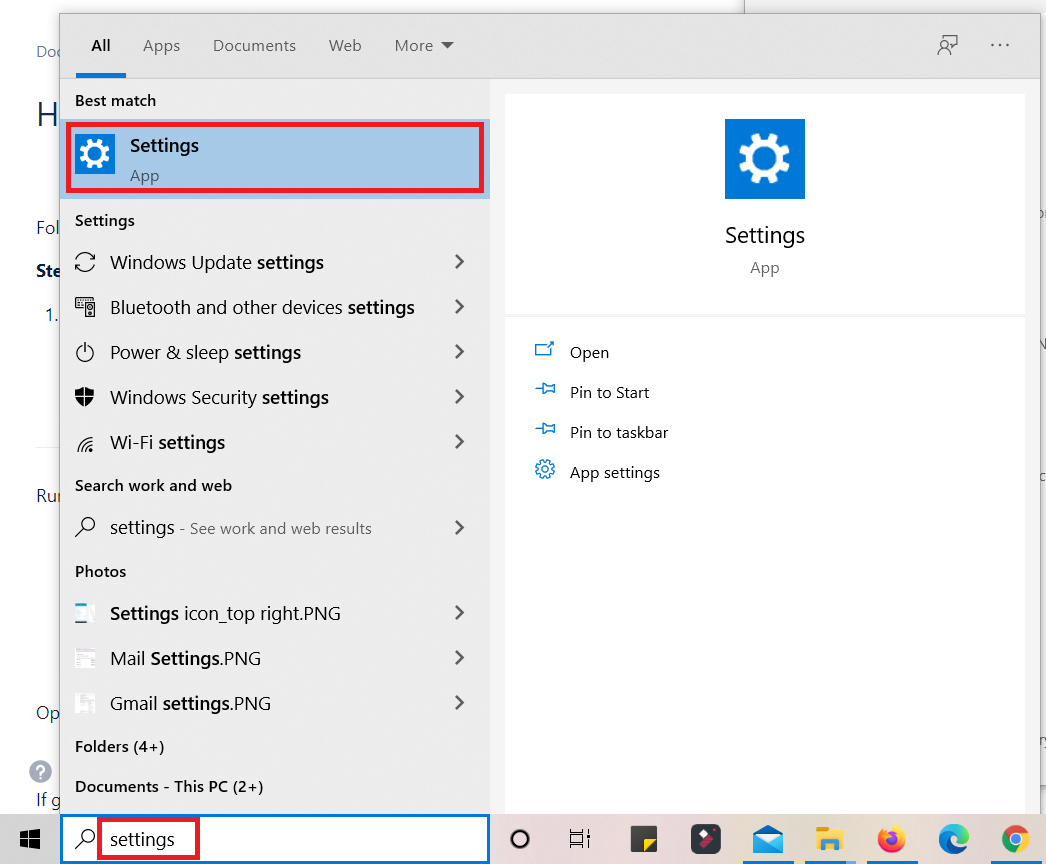
Navigate to Settings on your system.
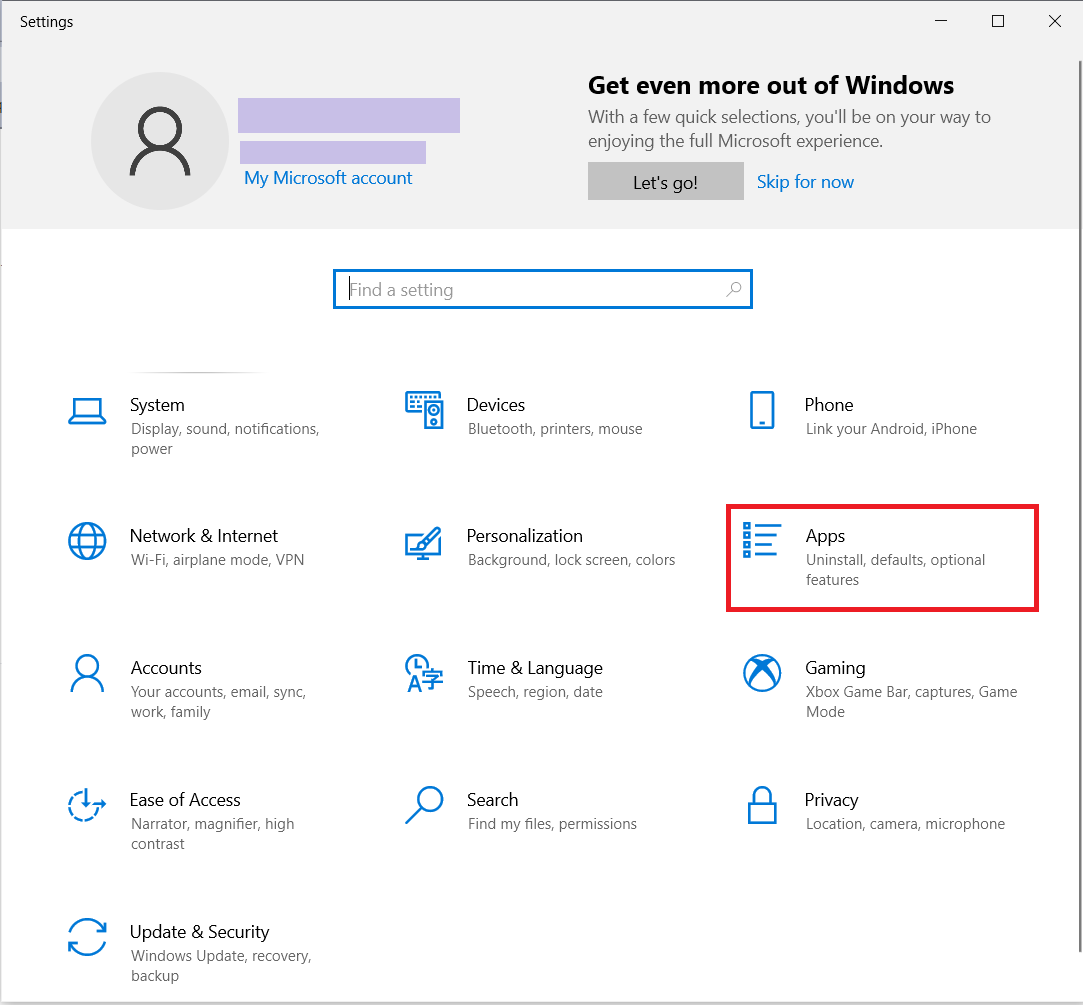
Select Apps.
Under Apps & features, look for Microsoft Edge.
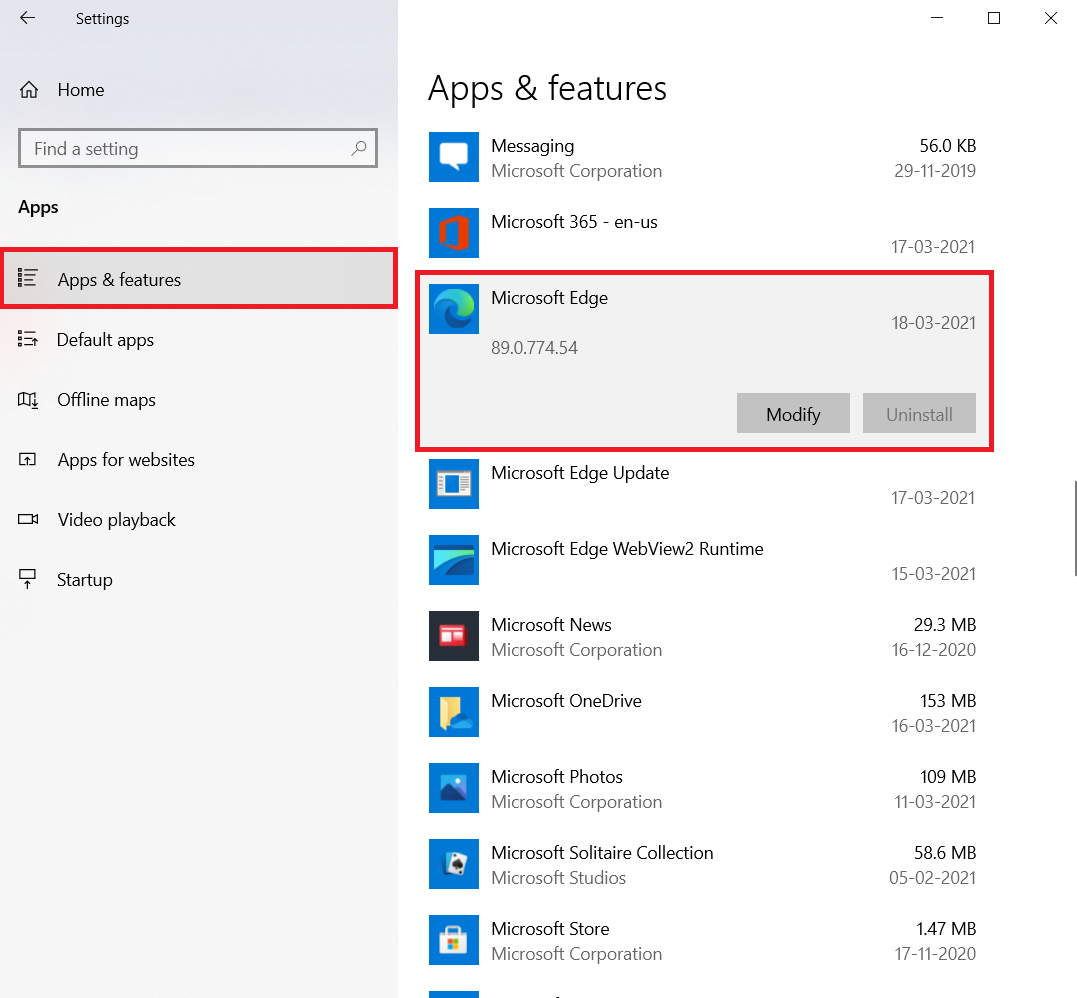
Click Uninstall (if the button is enabled)
If the Uninstall button is not enabled, type cmd in system search box
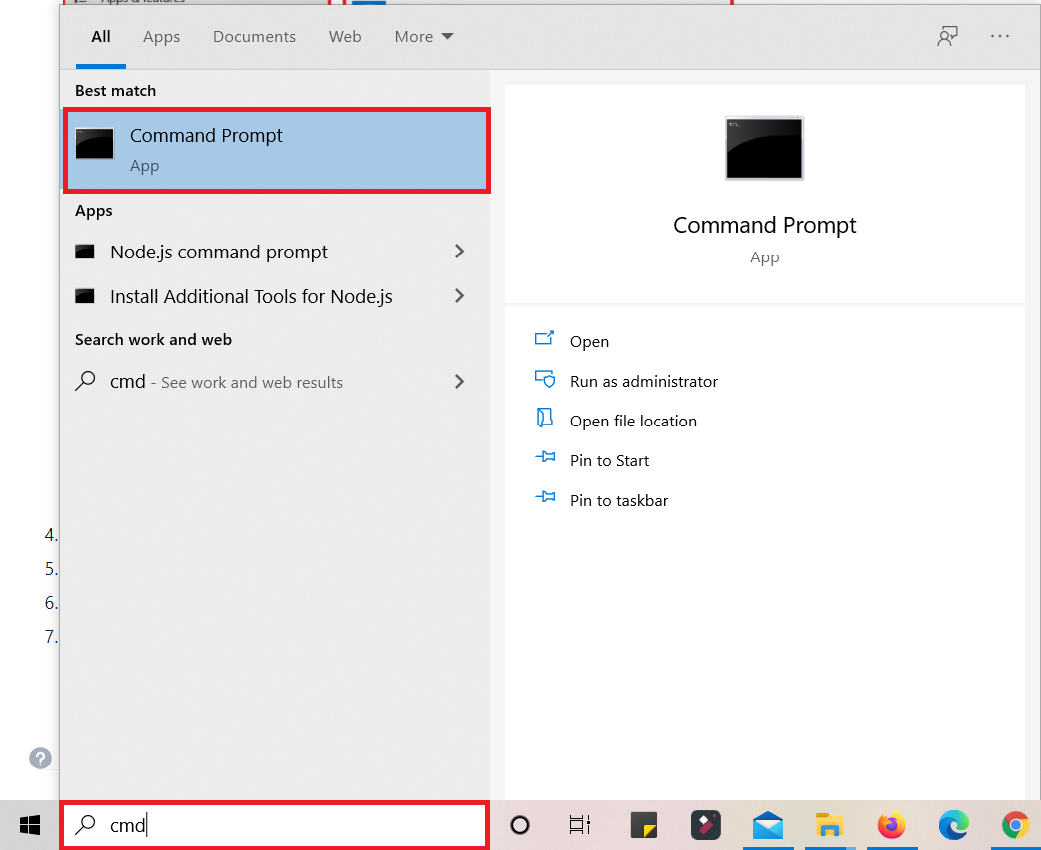
Right click and click on Run as Administrator.
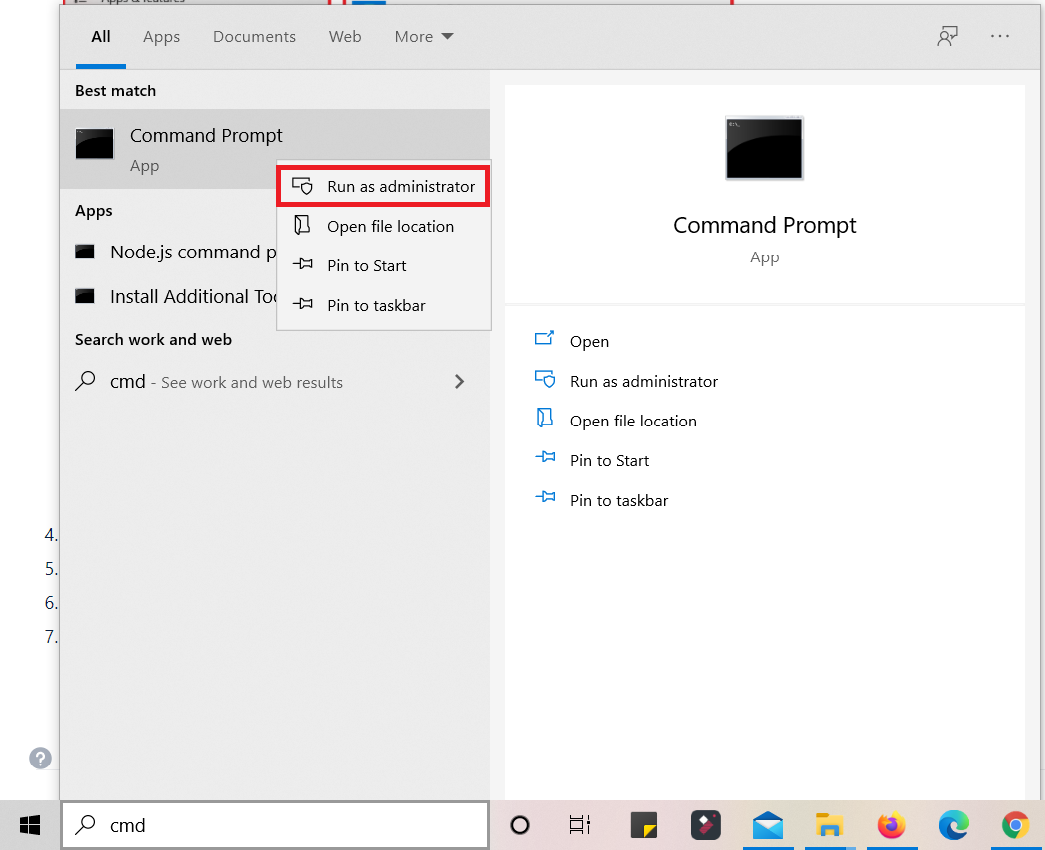
Type the below command in cmd
cd C:\Program Files (x86)\Microsoft\Edge\Application\xx.x.xxx.xx\Installer
Navigate to the path check the version installed on your machine.
Replace the version as per the version installed on your machine.Press Enter key
Now, type the below command in cmd
setup --uninstall --system-level --verbose-loggingPress Enter key.
The below displayed pop should be displayed.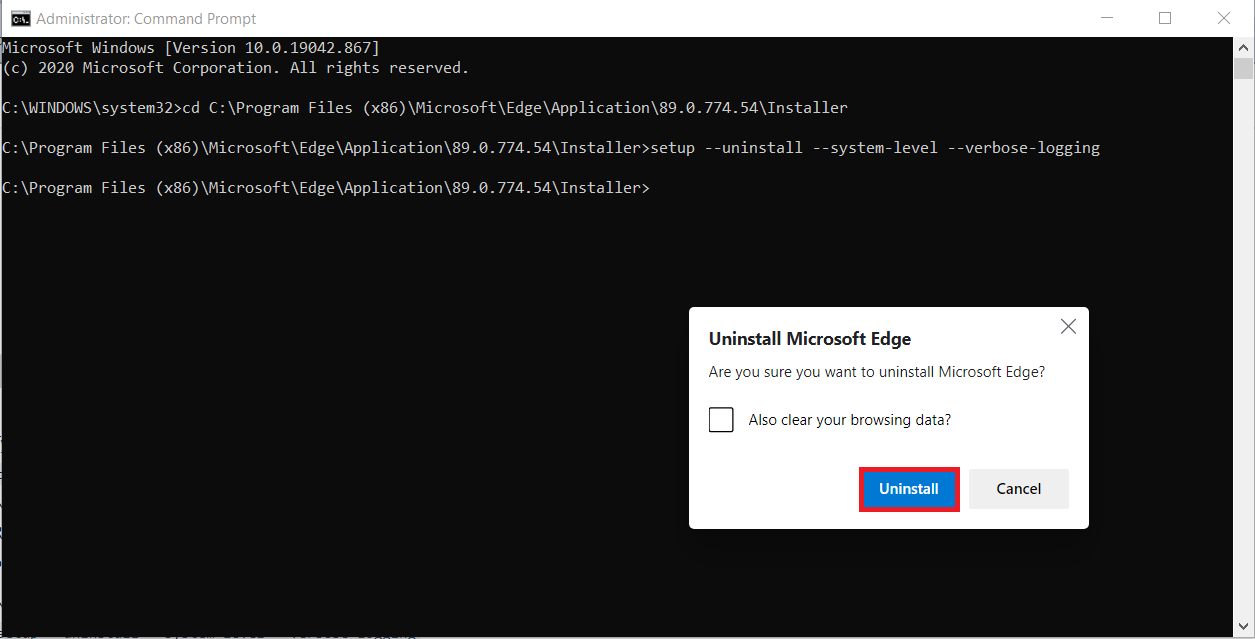
Click on Uninstall button.
You will notice that the new Edge Chromium will be uninstalled and Edge Legacy will reappear.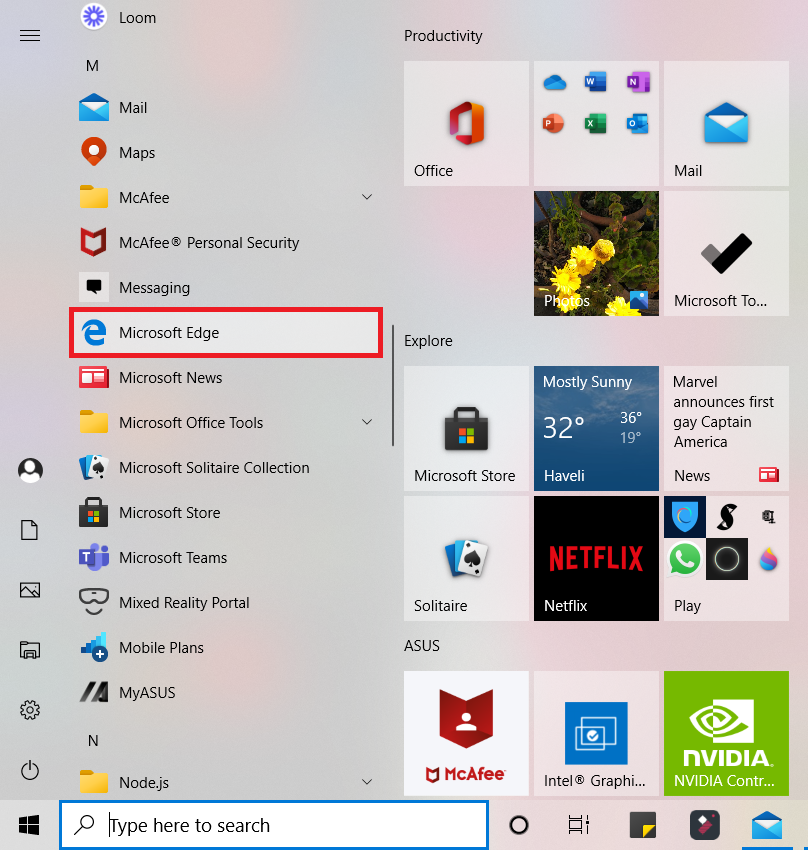
Step 2 : Run Legacy Edge & Chromium Edge side by side
- Using Registry Editing
- Using Group Policy
A : Using Registry Editing
Launch Registry Editor by typing Registry Editor in the system search box
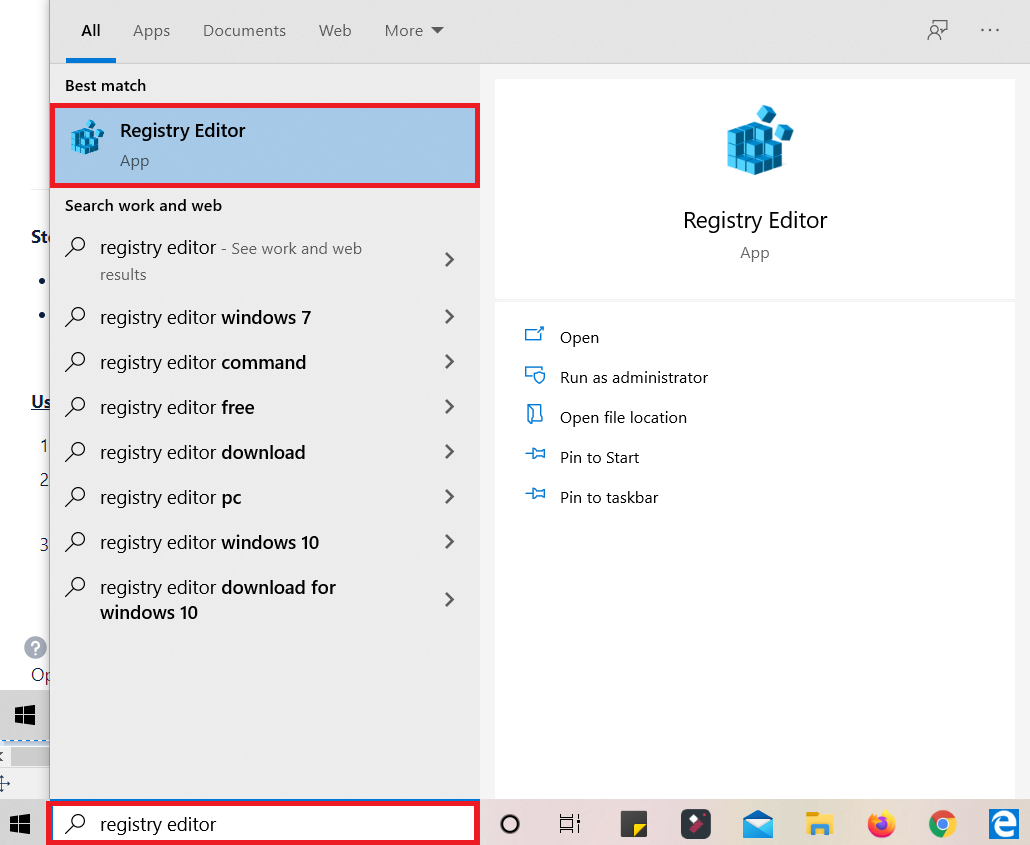
Navigate to Microsoft Polices
Computer\HKEY_LOCAL_MACHINE\SOFTWARE\Policies\MicrosoftRight-click on the Microsoft folder and create a new key with name EdgeUpdate
Select EdgeUpdate folder, and right-click on the empty side on the left-side
Create a new 32-bit DWORD with the name Allowsxs
Double click to edit the value of Allowsxs and set it as 1.
Click on OK.
B: Using Group Policy
- Launch the Group Policy Editor by typing gpedit.msc in the Run prompt followed by pressing the Enter Key.
- In Group Policy Editor, navigate to Computer Configuration > Administrative Templates > Microsoft Edge Update > Applications.
- Under Applications, select Allow Microsoft Edge Side by Side browser experience and then click Edit policy setting.
- Select Enabled and then click OK.
If you are unable to access the group policy on your machine, follow the below steps :
Navigate to the following path
C:\Windows\servicing\PackagesSearch for the below file :
Microsoft-Windows-GroupPolicy-ClientExtensions-Package.mum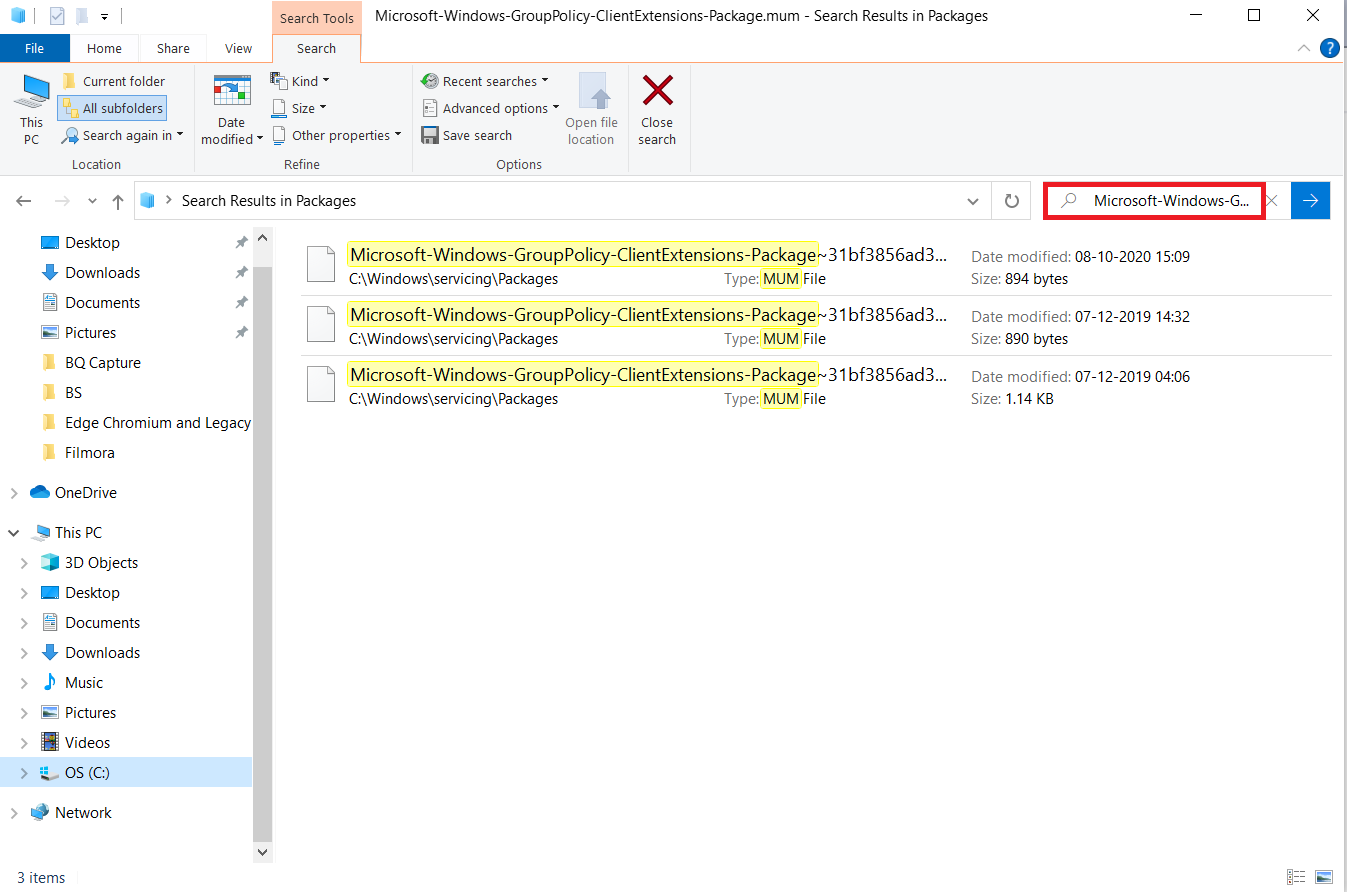
Launch command prompt.
Right click and click on Run as AdministratorEnter the below command in cmd
DISM /Online /Add-Package:C:\Windows\Servicing\Packages\<name of the first file>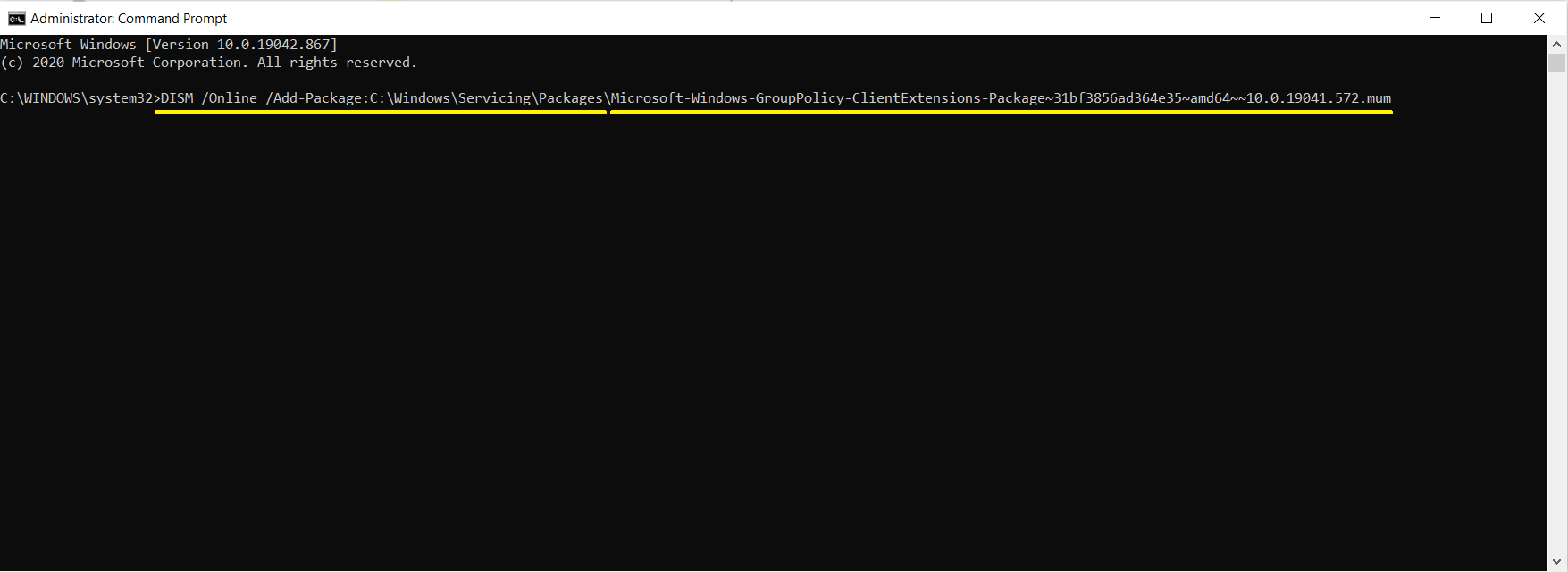
Press Enter key.
Once “The operation completed successfully.“ message is displayed, enter the below command in cmd
DISM /Online /Add-Package:C:\Windows\Servicing\Packages\<name of the second file>Press Enter Key.
Once “The operation completed successfully.“ message is displayed, enter the below command in cmd
DISM /Online /Add-Package:C:\Windows\Servicing\Packages\<name of the third file>Press Enter Key
Now, search for another file with the following name :
Microsoft-Windows-GroupPolicy-ClientTools-Package.mumEnter the below command in cmd
DISM /Online /Add-Package:C:\Windows\Servicing\Packages\<name of the first file>Press Enter Key
Once “The operation completed successfully.“ message is displayed, enter the below command in cmd
DISM /Online /Add-Package:C:\Windows\Servicing\Packages\<name of the second file>Press Enter Key
Do this for all the files that are displayed after searching for the file Microsoft-Windows-GroupPolicy-ClientTools-Package.mumAfter competing this process, restart your computer.
Now, try launching the Group Policy Editor by typing gpedit.msc in the Run prompt followed by pressing the Enter Key.
Install new Edge