
Testing with Bqurious > Creating Tests > Recording Tests
Understanding Bq Genie Recorder
Bq Genie Recorder intelligently captures all the actions you perform on a given application, and converts them into executable tests.
Bq Genie Recorder Components
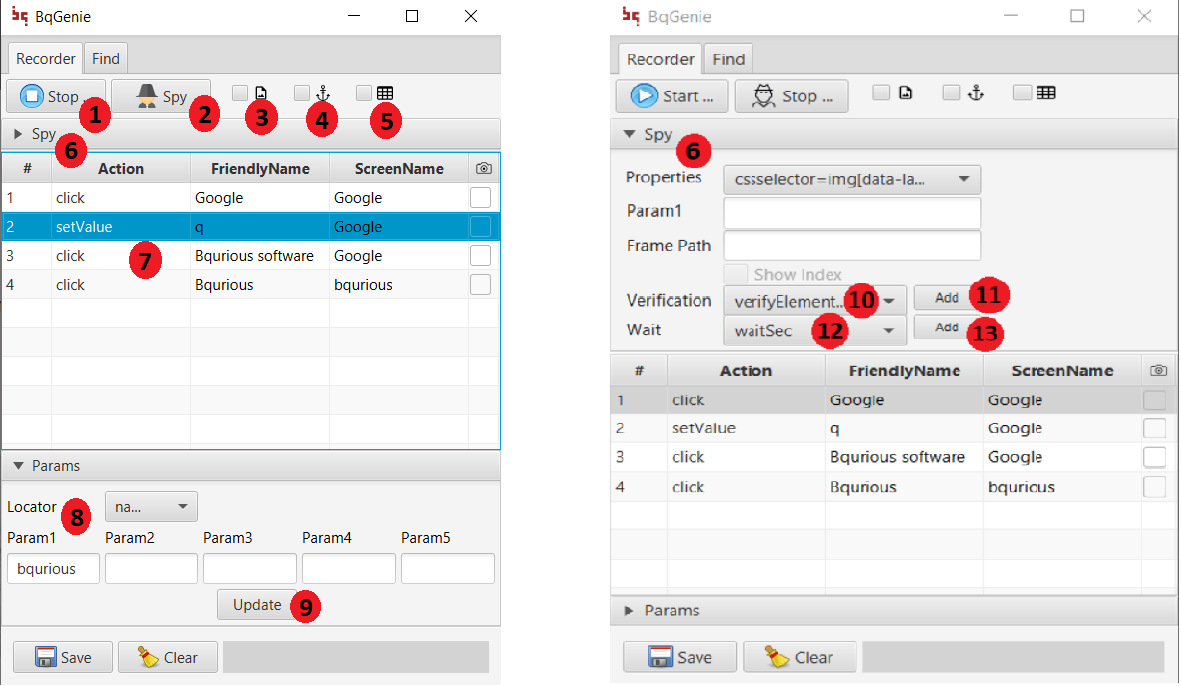
| # | Component | Description |
|---|---|---|
| 1 | Start/Stop Button | This button Starts or Pauses the Current Recording Session. |
| 2 | Spy Button | Starts or stops the Spy session. It pauses the current recording session if clicked. |
| 3 | Image | Capture Image of the element being recoded |
| 4 | Record with Anchor | Capture the element relative to an anchor element |
| 5 | Record as Table | Capture elements inside a table cell |
| 6 | Element Detail Area | This area gets populated with the last recorded/spied UI element : ii. Element Locator - Shows the list of ways this element can be identified. iii. Assertion Actions - Add an assertion as the next step in the ongoing recording session. |
| 7 | Action Grid | This area shows captured actions as they get recorded when Recording (1) is on.
|
| 8 | Parameter Area | This area shows the values/parameters captured as part of the recording. It includes text that you enter or value of the element being worked on. |
| 9 | Update Button | To update the parameters |
| 10 | Assertions | As part of recording, if you need to add assertions. |
| 11 | Add Button | Add element to the Object Repository. |
| 12 | Wait | As part of recording, if you need to add wait. |
| 13 | Add Button | Add element to the Object Repository. |
IMPORTANT
Recorded Steps get additively saved to the server. Please Clear the recorded steps after Saving to prevent duplicate steps.