Application Lifecycle Management > Execute
Execution History
The remote execution done for any test case (Manual / Automation) is stored in the Execution History. The user can check the test case status at any point of time by navigating to the Execution History.
Step-by-step guide
- Click on Execute on left panel.
- Click on Execution History.
The previous executions are displayed on left side of the page. - Select an execution history.
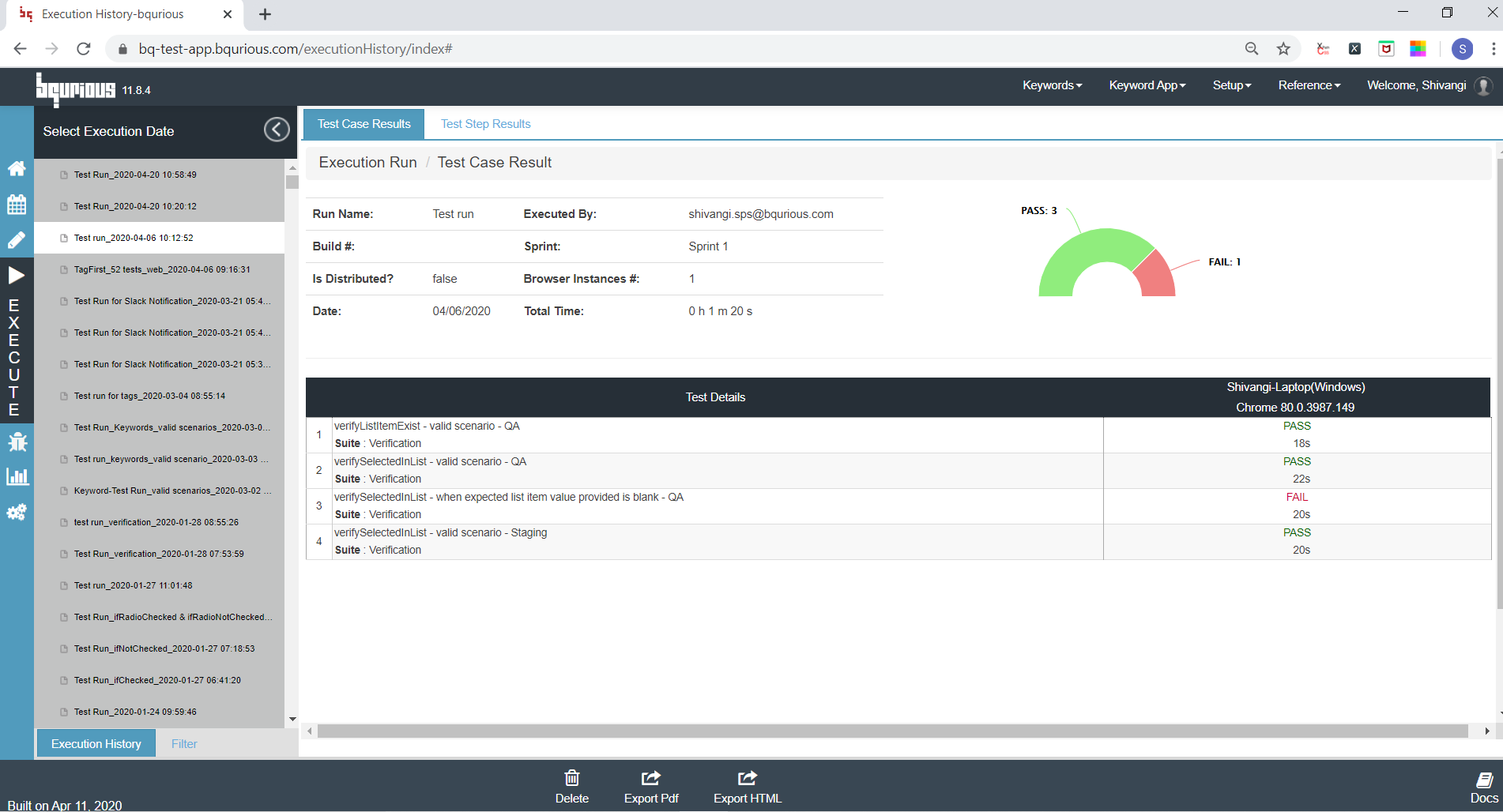
The test case result is displayed for that execution.
The details displayed under Test Case Results tab are :
- Run Name : run name entered by the user while executing the test
- Build : build no. entered by the user while executing the test (if mentioned by user)
- Is Distributed? : true/false
- Date : date of execution
- Executed By : username
- Sprint : sprint (if mentioned by user)
- Browser Instance # : instances selected by user for the execution
- Total Time : total time taken to execute the tests
- Test case name (including the suite name)
- Test case status (including the time taken by the test to complete execution)
- Machine name (Windows/Mac)
- Browser (version)
IMPORTANT
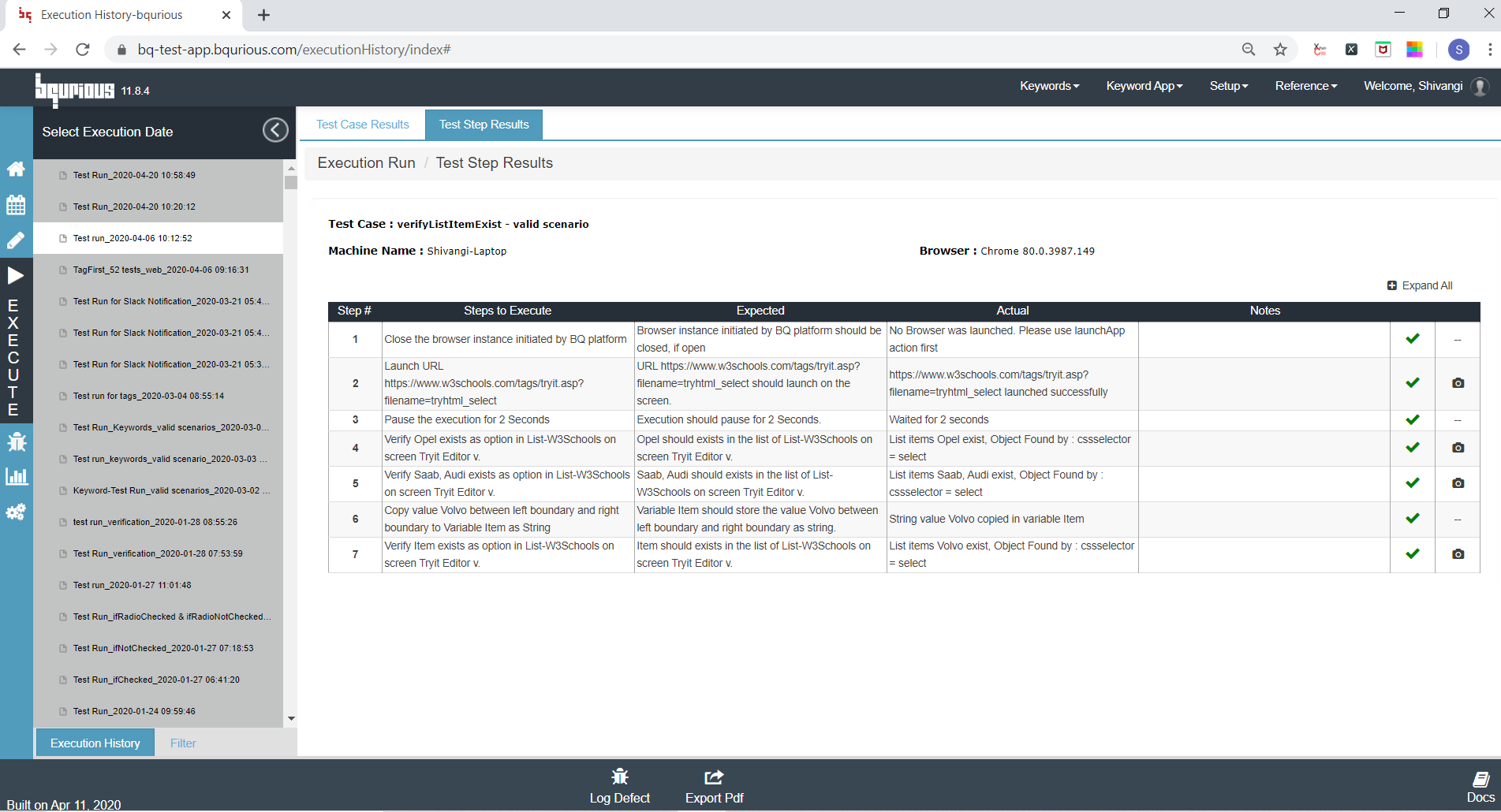
When the test case status is clicked for any particular test, the Test Step Results are displayed.