
How to export Execution Results?
Bq has the capability to export reports in PDF and HTML formats. Both formats are a little different and are targeted to different audience.
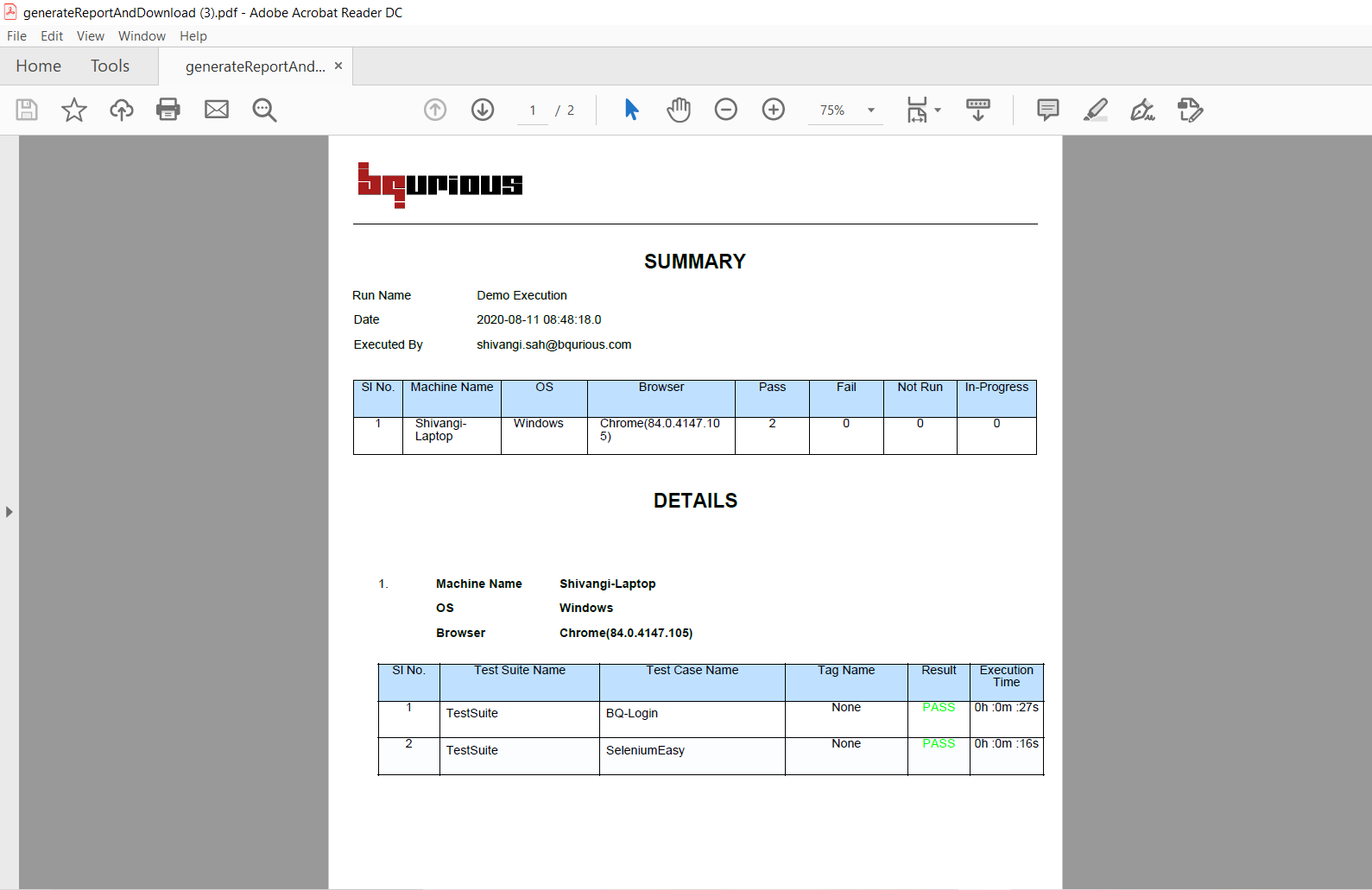
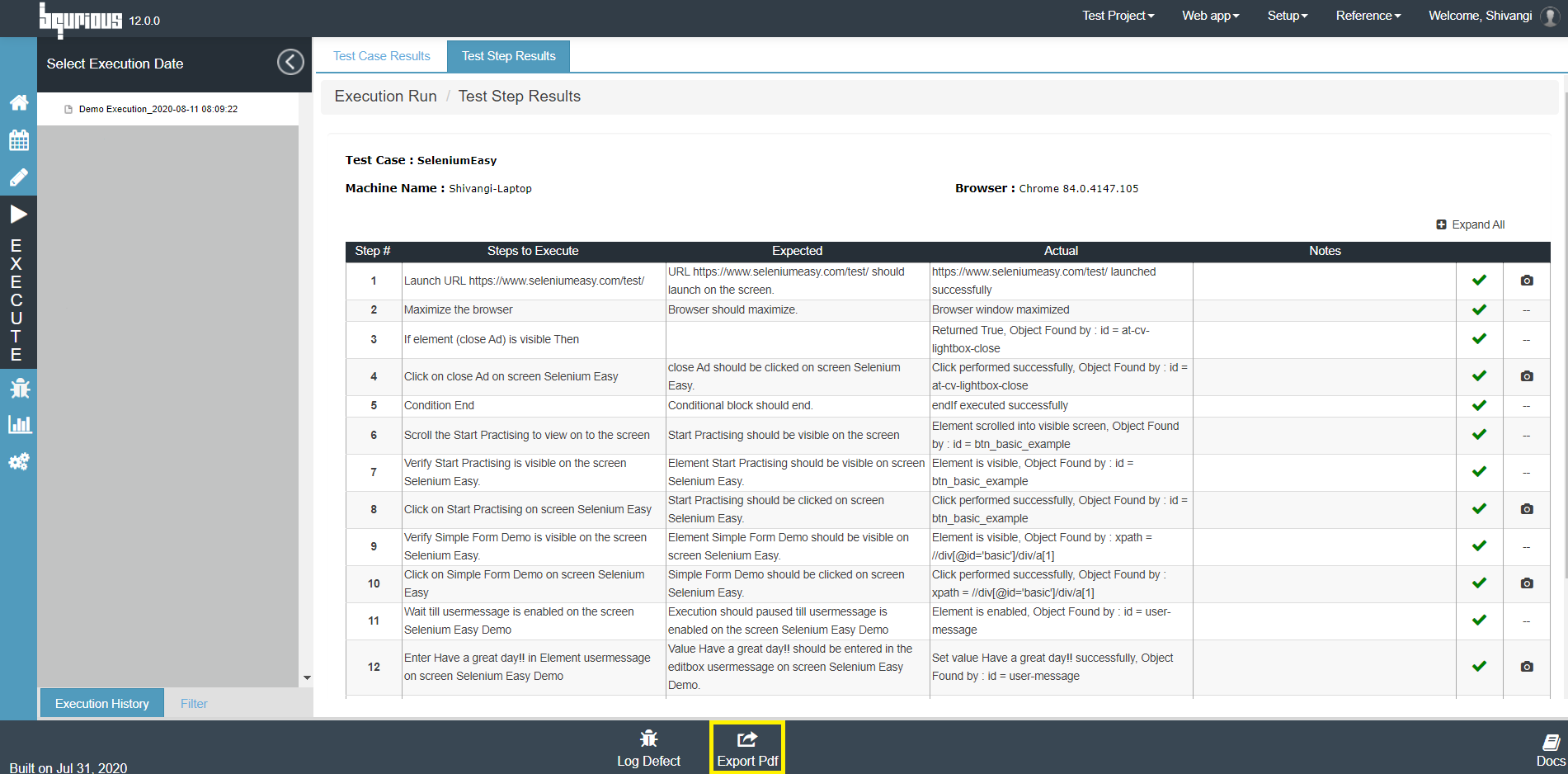
PDF reports generated from Test Step tab (shown below) contains details for a single Test and contain step level details including screenshots. When generated from Test Case Tab, the PDF report contains a summary of all the the tests run with their status. It does not contain step level detail.
HTML report acts more like a dashboard and contains step level details for all the tests without the screenshot.
Instructions
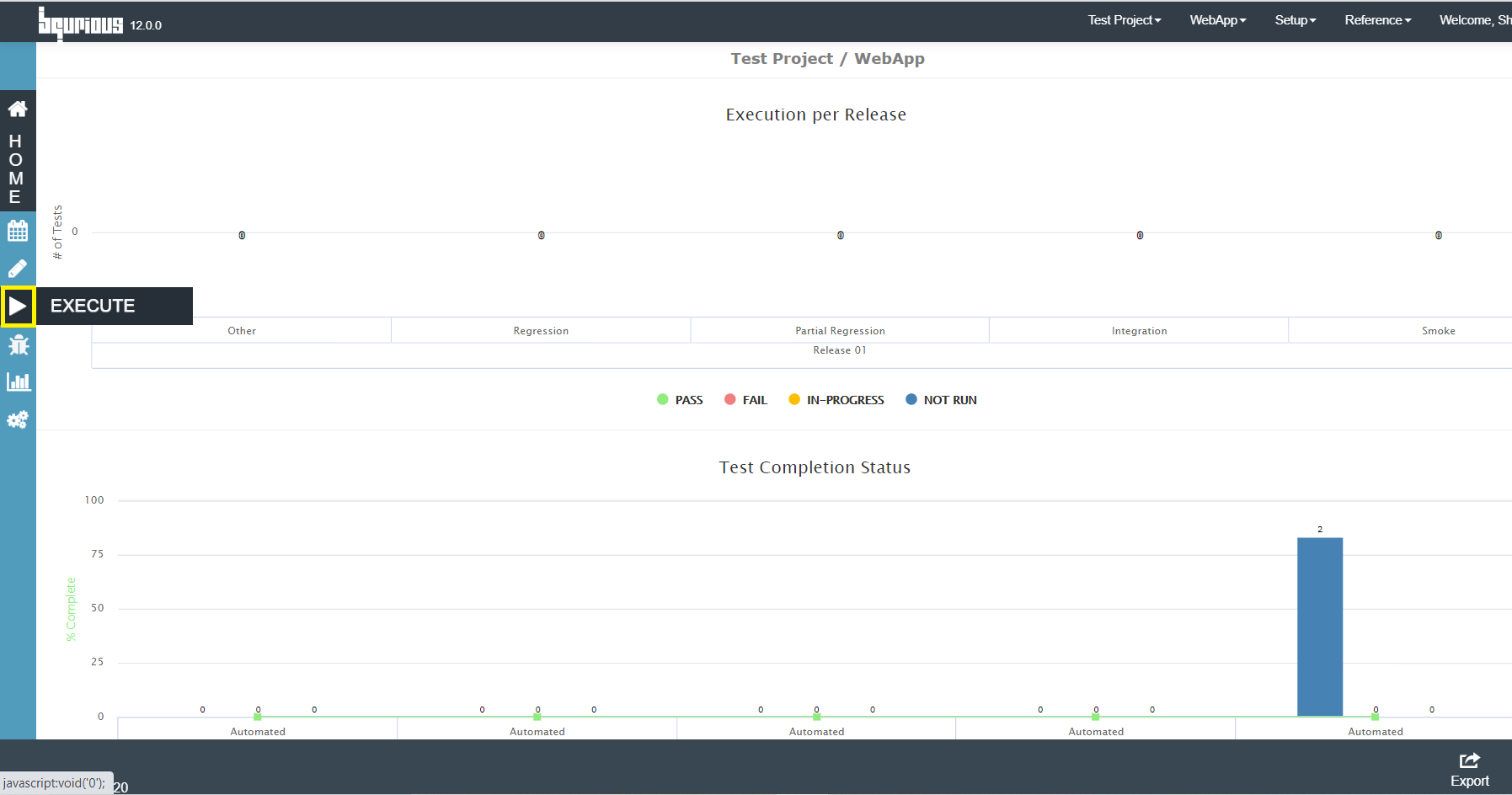
Click on Execute on the left nav.
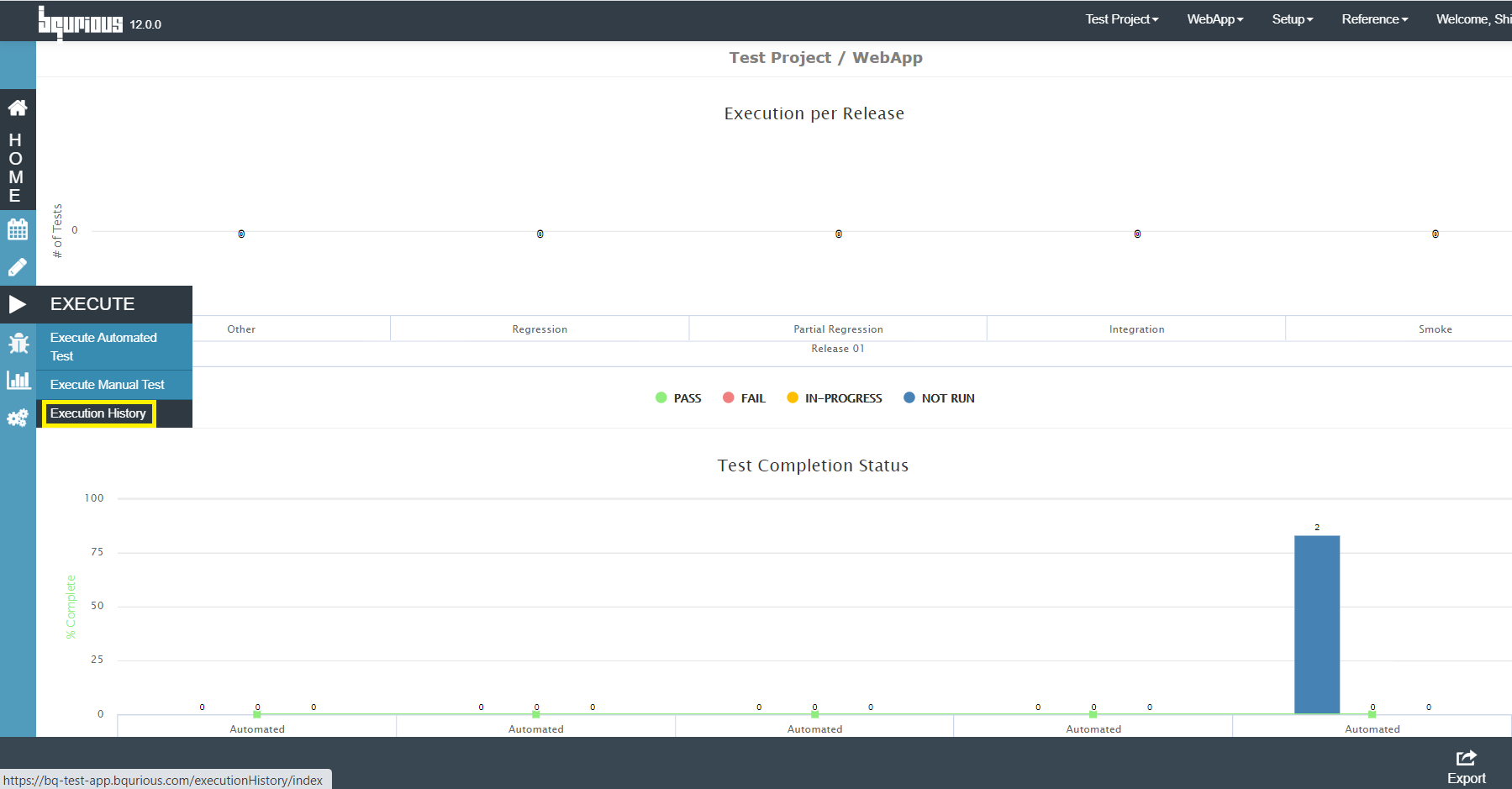
Click on Execution History
Select the execution from left pane
Execution Run / Test Case Result will be displayed for that particular runClick on Export Pdf button (if you wish to generate a report with only the test case status - Pass / Fail)
This is same as the Export Pdf button available on the Execution Results-bqurious screen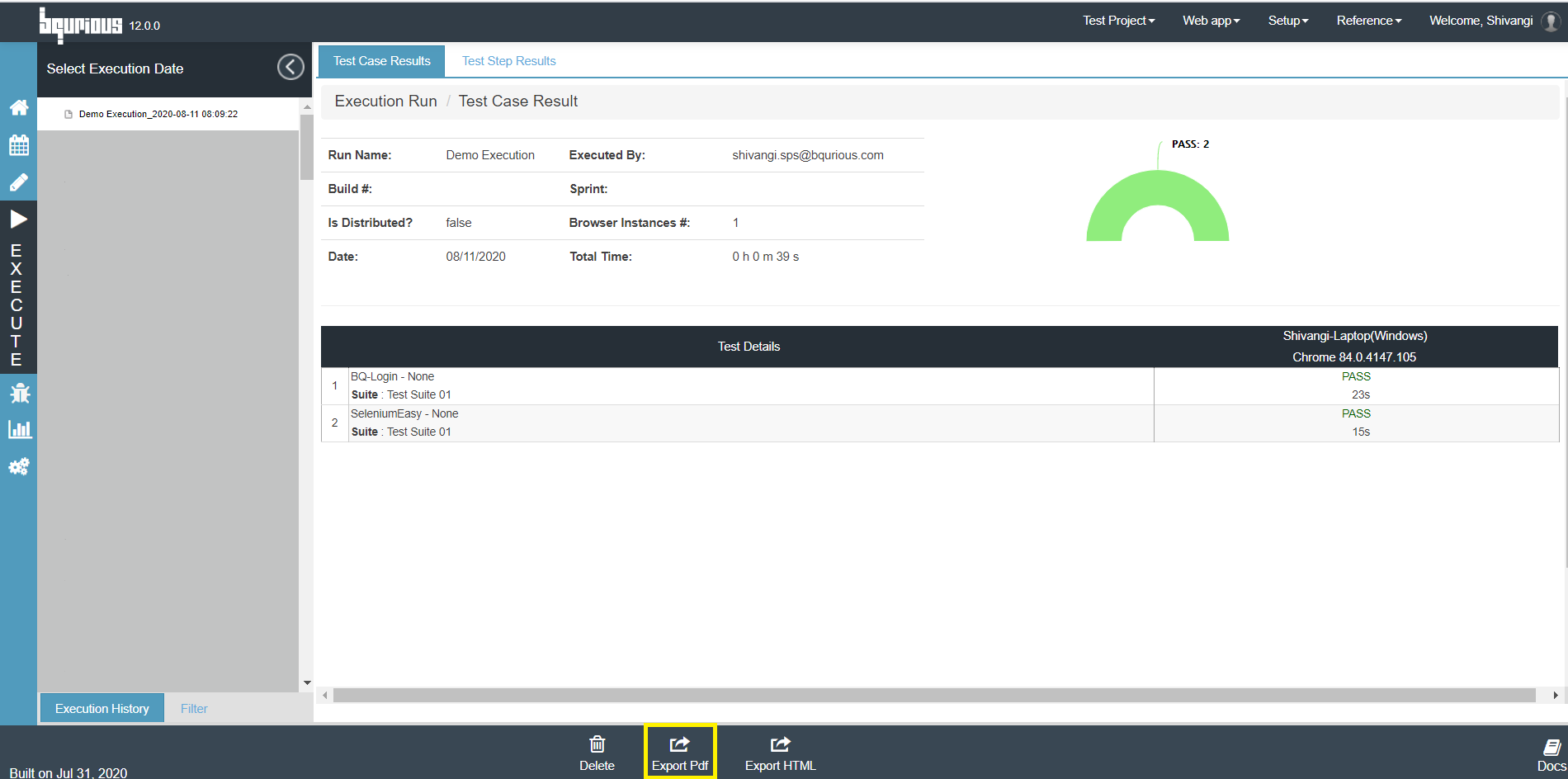
The generated report will look like this :
Click on Export HTML button
The file will be exported as a .zip file. Extract the file and open it.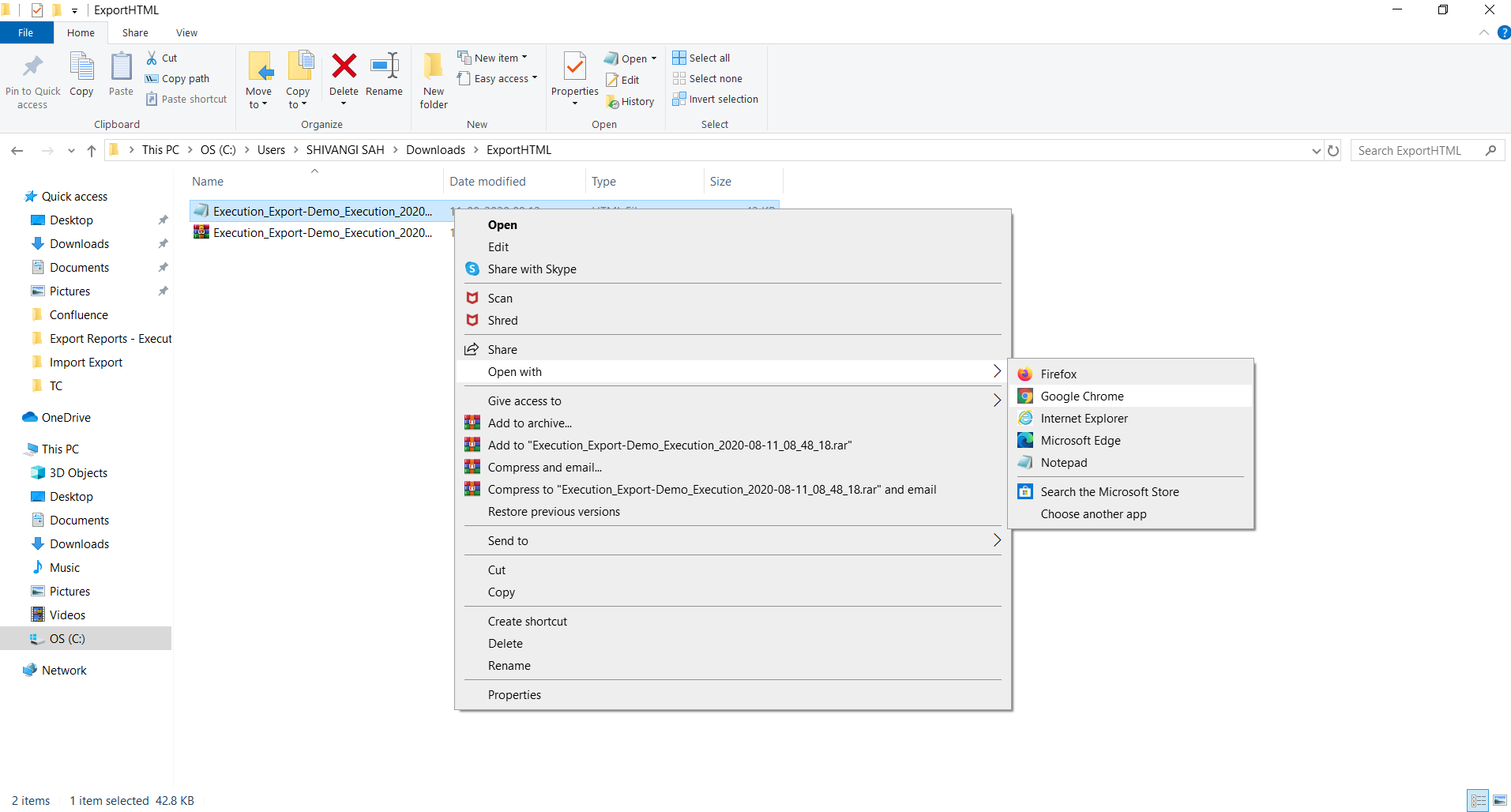
The generated report will look like this :
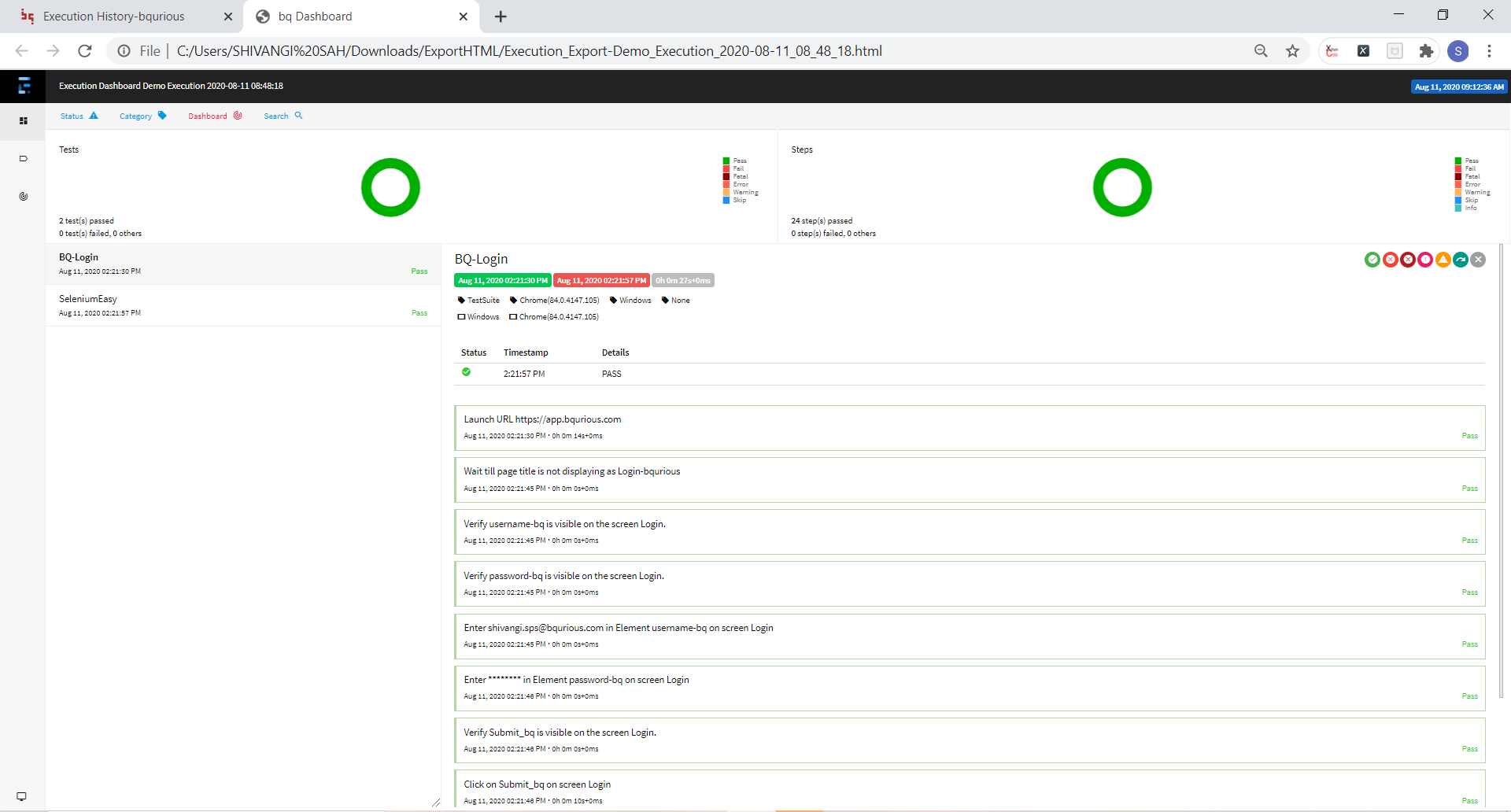
Please note that HMTL reports do not show screenshots.
Click on the test case status for a specific test
Test Step Results screen will be displayed.Click on Export Pdf button (if you wish to generate a detailed report of the test case)
The generated report will look like this :
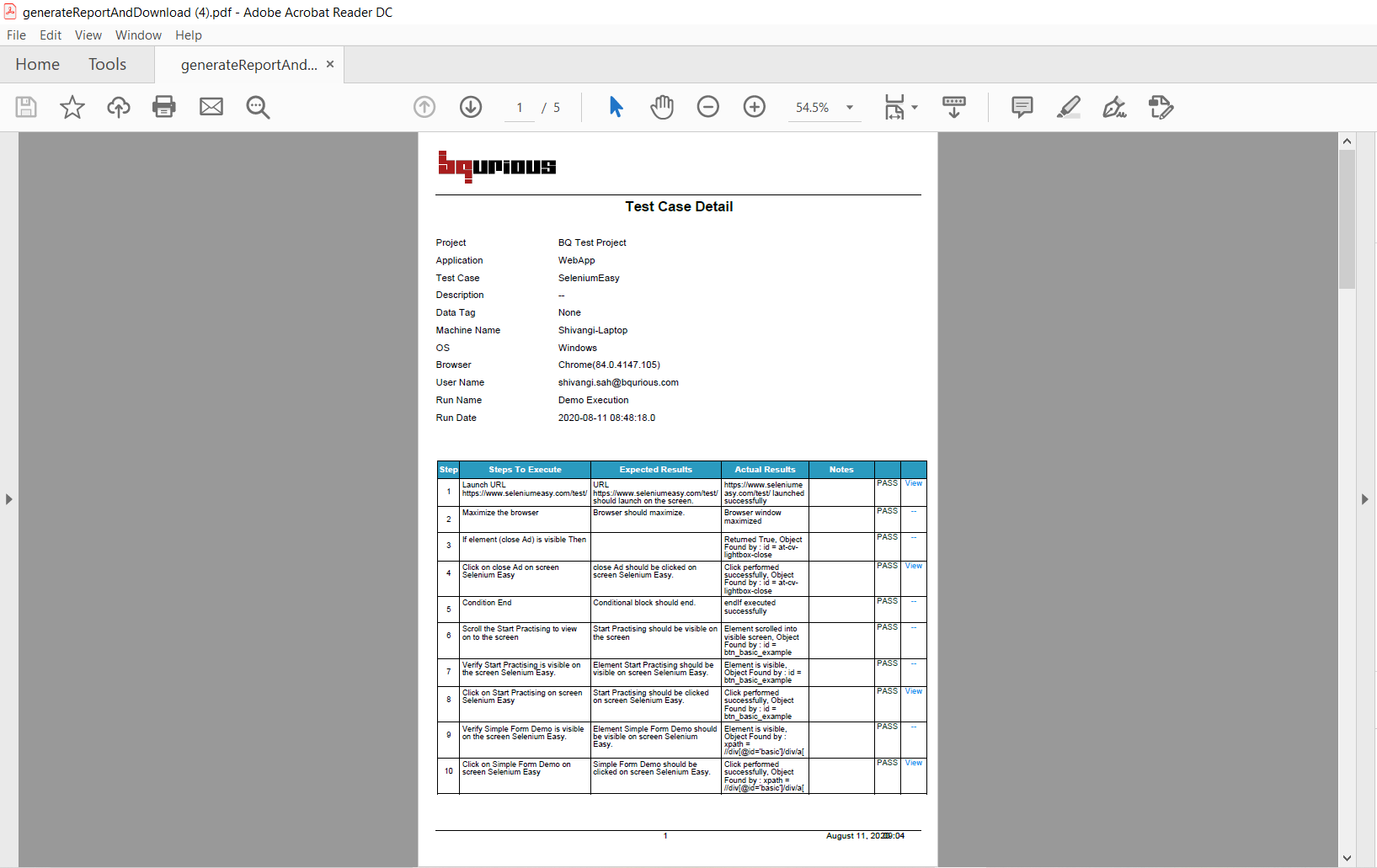
To view the screenshots, click on View displayed besides the test step status.