
Application Lifecycle Management
Analytics
Analytics feature has been provided to the users so that they can generate reports from the platform itself.
There are four categories of reports available :
- Management Reports
- Current Snapshot
- Test Assets Distribution
- Test Assets Trends
Each category has multiple report types that can be generated.
Management Reports
The Management Reports category includes the below types of reports :
- Development Status
- Defect/Issue Status
- Execution Status
- Testing Efficiency
- Automation Index
- Defect Severity Index
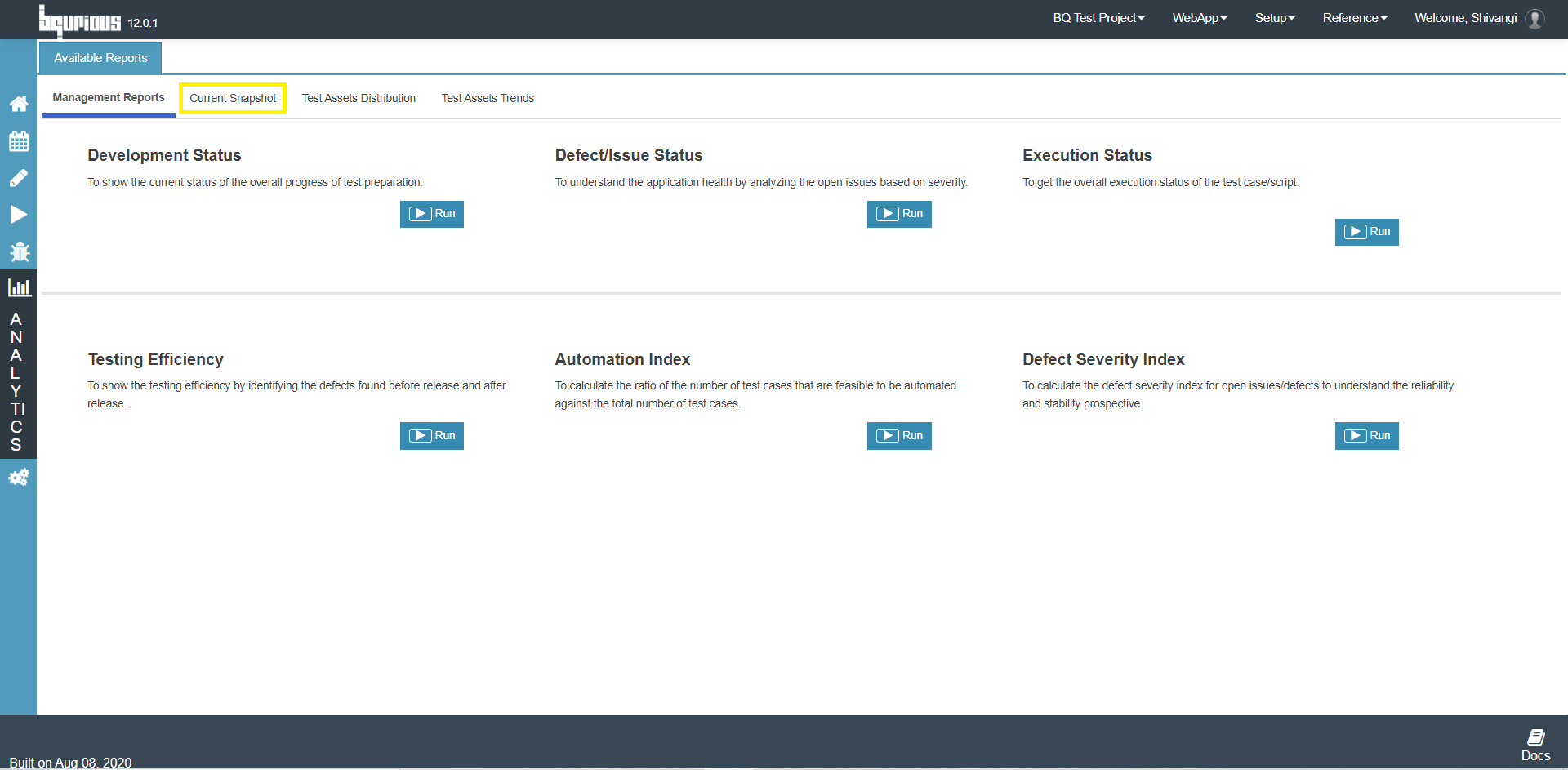
Current Snapshot
The Current Snapshot category includes the below types of reports :
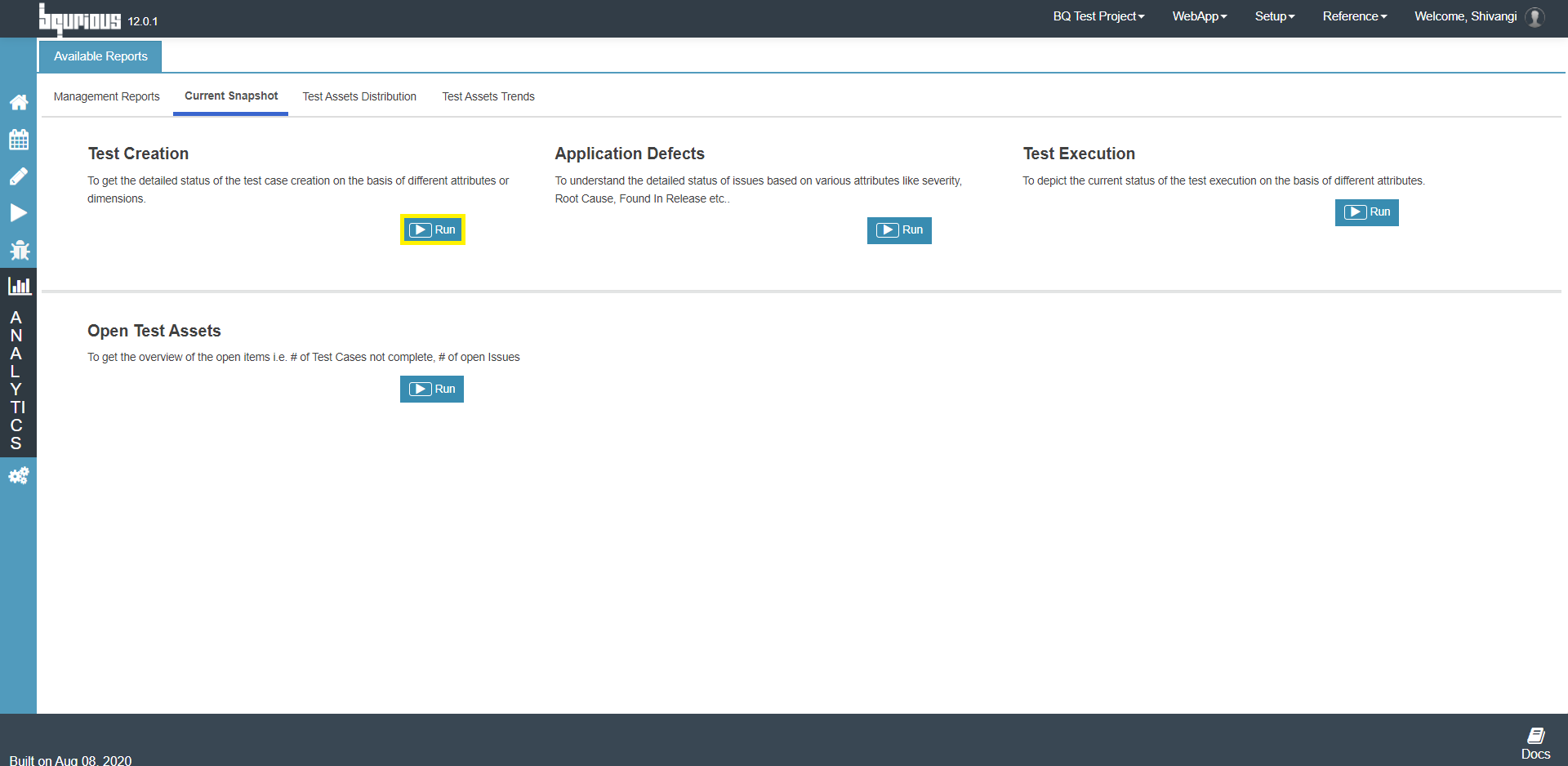
- Test Creation
- Application Defects
- Test Execution
- Open Test Assets
Test Assets Distribution
The Test Assets Distribution category includes the below types of reports :
- Test Case Design
- Overall Issues
Test Assets Trends
The Test Assets Trends category includes the below types of reports :
- Test Completion
- Issue Discovery
- Issue Rejection
- Test Case Exists
- Planned Vs Delivered
How to generate a specific report?
Suppose you wish to generate a report for “Test Creation“.
Follow the below steps to generate the report :
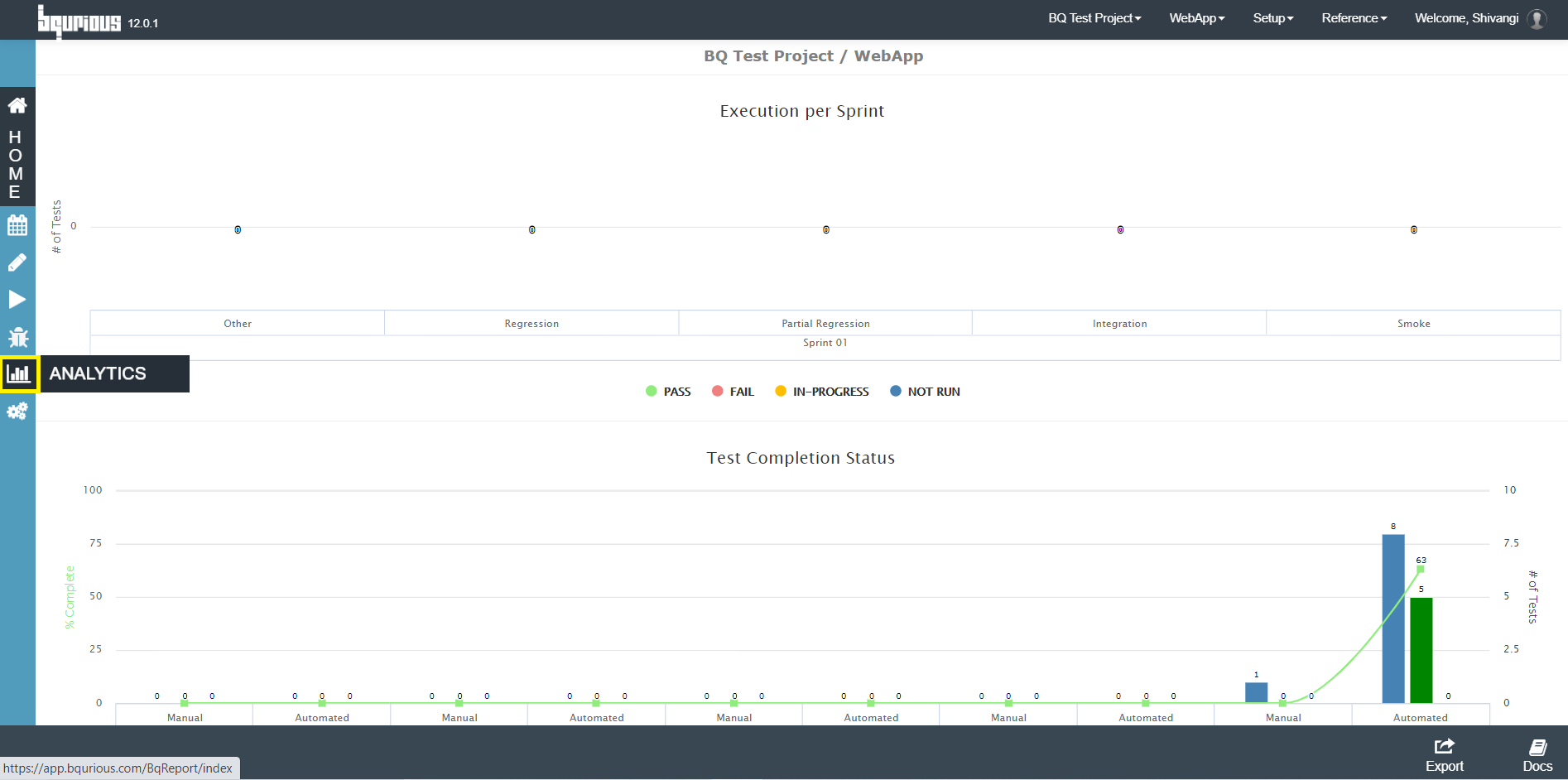
Click on Analytics
Click on Current Snapshot tab
Click on Run button for Test Creation option
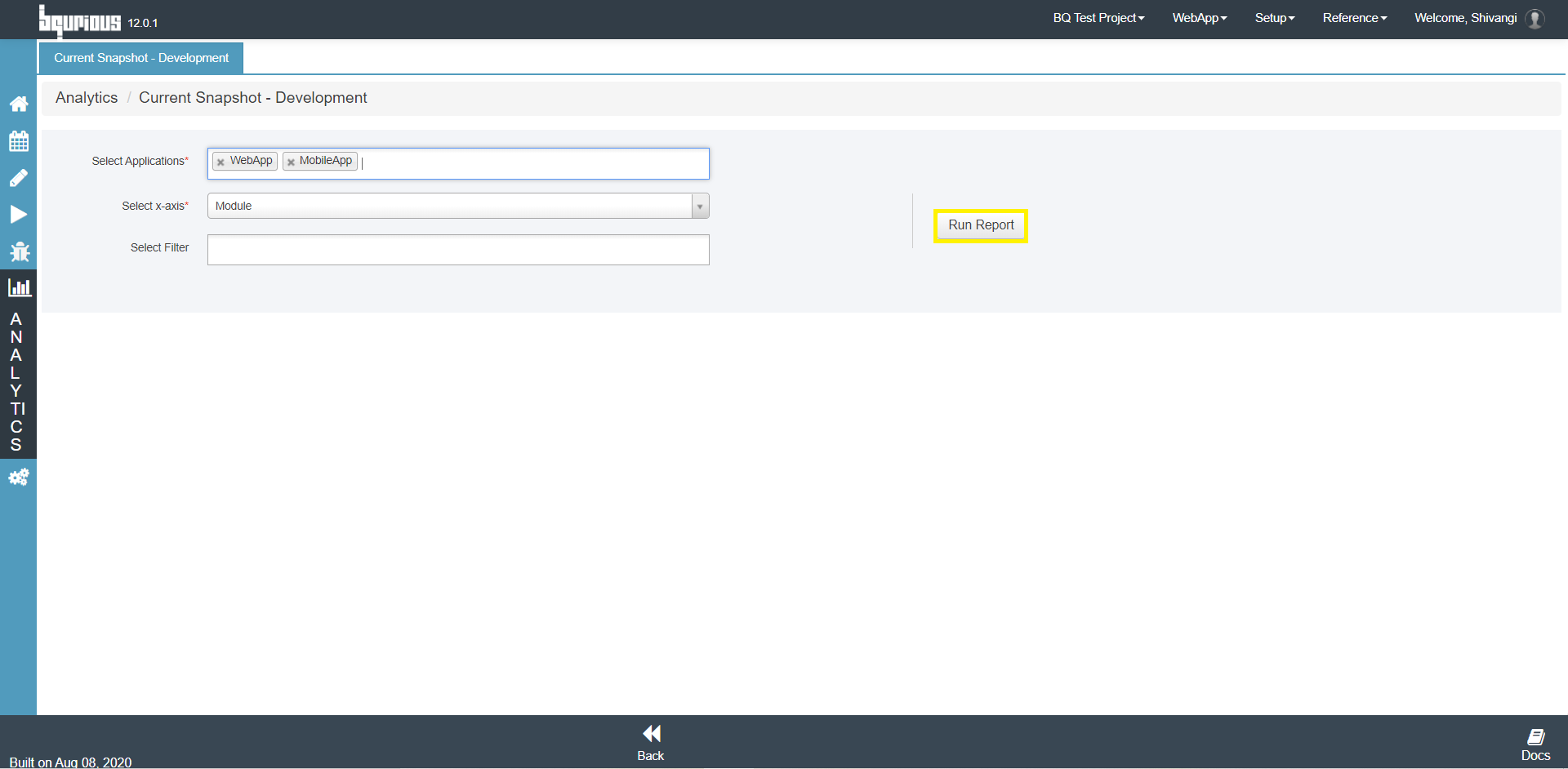
Enter the meta data :
- Select Application : The application for which the test completion report needs to be generated
- Select x-axis : To generate data on the basis of
- Select Filter (optional) : To filter the report
The select filter appears only when you enter an application in the Select Application field.
Click on Run Report button
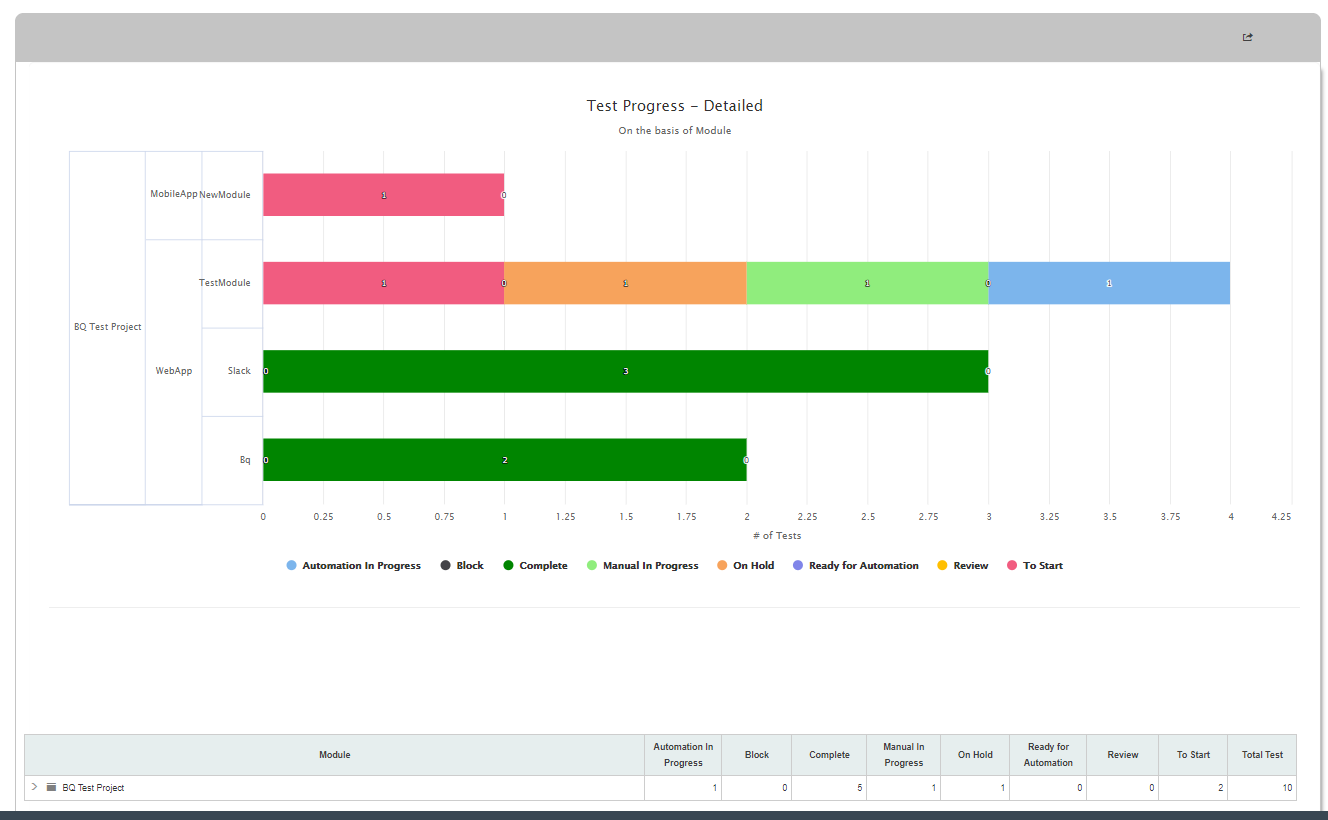
The generated report will look like this :
IMPORTANT
The hierarchal structure (displayed on the bottom of the generated report) is available only for certain reports.
IMPORTANT
The date range should not exceed 90 days for reports that requite time duration to be generated.
NOTE
Multiple applications can be selected in the Select Application field.
The generated report will display the data for different applications with different colors to differentiate between them.
IMPORTANT
The generated report can be exported to .pdf by clicking on the Export icon on top right corner of the generated report.
The exported pdf file can be downloaded / printed easily.